
How to Review a Personalized Ornament Preview Before Ordering
A personalization preview is easier to review when you separate the decisions. First check what you entered, then the arrangement, then the product options. Trying to judge everything at once makes it easier to overlook a small spelling error or order the right design in the wrong quantity.
Use this review before submitting an ornament order. Available fields differ by product, so check the actual design you selected rather than assuming every ornament accepts the same information.
Keep one agreed version of the personalization
Write down the exact text you intend to use before entering it. If the gift comes from several relatives, ask one person to collect corrections and maintain the agreed version. This prevents a later message from being missed among several different suggestions.
Compare the entries with that final version. Check names letter by letter, including repeated letters, spacing, and any punctuation the design permits. Ask the person who knows the recipient best to confirm any uncertain nickname or family wording before this final review.
Read the design at its intended viewing size
Enlarge the preview to inspect spelling and crop, then return to a normal viewing size to judge the arrangement. A design that feels readable when zoomed in may look crowded at a smaller scale. Use the product dimensions as a planning reference; a phone preview is not necessarily life-size.
For example, the Crystal Family glass ornament has a personalized family design. Review the available options and the resulting preview together. Do not assume that an example picture establishes which elements can be changed.
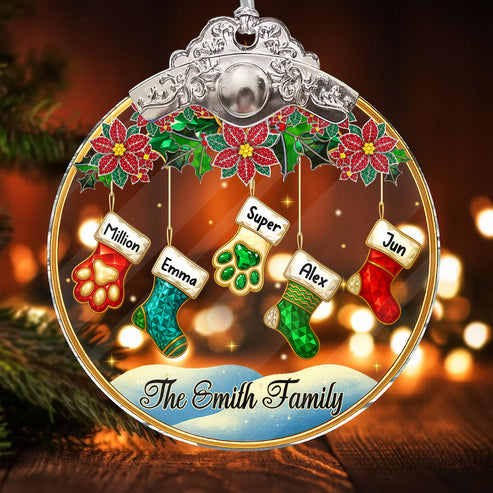
Check every person or detail represented
Count the people, names, or other entries where the selected design provides them. Compare their order with your plan, and check whether any entry is clipped, overlapping, or placed somewhere unexpected. A design can look attractive overall while still representing the wrong household detail.
If you change an option, check the entire preview again. A revised layout may affect more than the field you just edited. For a photo-based ornament, look at faces and important edges after any crop or positioning adjustment.
Review the product configuration separately
Check the selected material, size, and pack wherever those options are offered. Then review the quantity field. A design representing several family members does not necessarily mean several physical ornaments, and a multi-piece pack may not allow different personalization on each piece.
Read what is included with the selected product instead of relying on props in a styled image. If you are comparing dimensions, our photo ornament size guide explains a paper-outline method for planning the available photo ornament sizes.
Pause when the preview does not match the plan
If a required entry is missing or the displayed result is unclear, resolve that uncertainty before checkout. Check whether the field saved, whether another option needs selecting, or whether you have reached a stated design limit. Avoid entering unrelated characters merely to make a required field appear complete.
Use the store's contact channel when the available controls cannot express the design you need. A preview is useful evidence of what you selected, but it is not a reason to assume an unlisted customization or an automatic correction after ordering.
Perform a final checkout review
Review the item summary, personalization details where shown, quantity, and delivery information before submitting. For several gifts, keep a private recipient list so similar-looking ornaments do not become mixed up later. Store any screenshot privately if it includes personal information.
Check the current policies directly if you are relying on a change or cancellation option; do not assume a correction will remain possible. The ornament shopping checklist can help bring these decisions together. Submit only when the details and selected product agree with your plan.